Deck Conn Controls
A 1989 command centre on a modern PC — how to drive the glass.
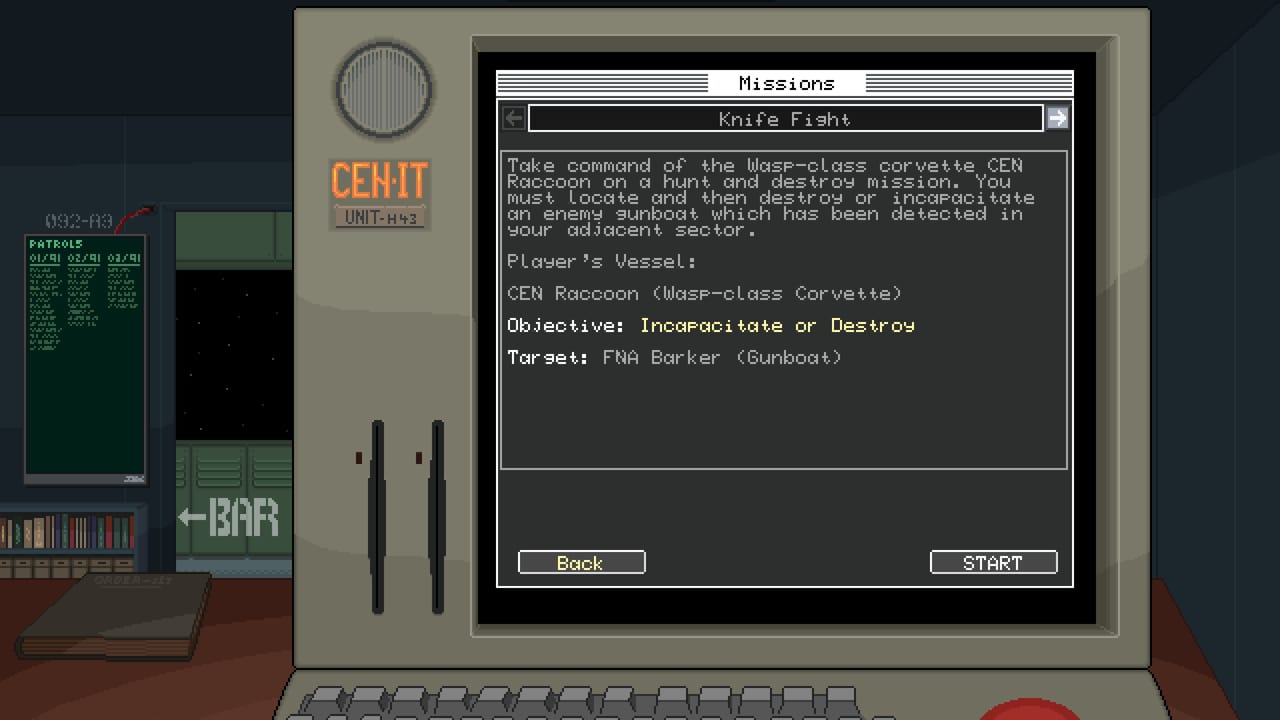
Deck Conn presents itself as a room full of terminals, not as a floating HUD. Launch previews describe authentic retro instruments, CRT plots, coded printouts, and a departure checklist you execute on the ship rather than on a pause menu. This page is how to live with that interface. It will not invent a keybind table the developers have not published in a public manual excerpt.
If a control is missing here, open the in-game settings after install and write your own overlay. Then come back to Getting Started with the real bindings in your notebook.
The interface is the fantasy
You are supposed to feel like a Cold War captain sitting in a mainframe room. Sections of the screen belong to sensors, propulsion, weapons, and the plot. Clicking the wrong glass is a diegetic mistake, not a UI bug. Slow down. The game is turn-based; it can wait while you find the reactor readout.
Practical habits:
- Identify the plot (tactical picture) versus the system panels before the first contact.
- Find reactor, batteries, and fuel and keep them in your eyeline. The systems guide explains why.
- Find the order or comms printout so HQ text is not a rumor you half-read.
- Find the control that ends a turn. Accidental turn-advance is the classic mainframe-Trek injury.
- Confirm capture and destroy are distinct commands so a misclick does not rewrite the campaign.
Mouse, keyboard, and what we will not guess
Steam tags the game as a 2D, turn-based, single-player command sim. That usually means mouse-driven panels plus keyboard shortcuts for repeat actions. Until Funtime Electrics posts a full bind list, assume:
- Point-and-click for terminal work and plot selection.
- Keyboard shortcuts may exist for ending a turn, cycling panels, or confirming a checklist item.
- Gamepad support was not a headline feature in the launch press. If you want a controller, test it in a standalone scenario, not on a live patrol.
Do not copy a key list from an unrelated MicroProse title or from Objects in Space. Elissa Black’s earlier work is a spiritual cousin, not a bind-compatible sequel.
Accessibility and display
Pixel-art CRTs look sharp at integer scales and muddy when a 4K desktop stretches them. Use the game’s windowed or integer-scale options if they exist; otherwise set the desktop to a resolution that does not smear phosphor text. If you run colorblind modes or large UI scales, test them on the departure checklist — that screen is the one you cannot afford to misread.
Steam Deck compatibility was listed as unknown at launch. If you try a handheld session anyway, remap the trackpads to mouse and keep this controls page plus the system requirements nearby. Unknown is not “verified.”
Combat clicking
During a fight you will select contacts, assign power, and pick subsystems to target. That is a lot of precise clicks on a busy plot. Zoom or focus the plot if the UI offers it. If it does not, sit closer and use the combat priority list so you are not hunting for a pixel-sized gun mount while the turn timer — or your patience — expires.
Capture and destroy should be hard to confuse. If they sit next to each other, hover, read, then click. The capture guide is useless if the interface ate the decision.
Settings to check on first boot
- Language: Steam shipped English. If you added a fan patch, this wiki cannot support it.
- Overlay: enable Steam overlay so you can open the power planner without killing the process.
- Difficulty or scenario select: find standalone missions and use them as a controls sandbox.
- Audio: coded alerts and CRT hums are flavour; do not let them mask a warning tone if one exists.
When the UI fights you
If a terminal will not accept input, you may have failed a checklist precondition (reactor not started, bus unpowered). That is systems, not binds — return to Ship Systems. If the mouse pointer is captured wrong, alt-tab once and check exclusive fullscreen. If a patch remaps something, it will be noted on Updates.
Command the glass the way the art direction asks: slowly, on purpose, with a finger hovering over the turn-advance until you mean it.
Frequently Asked Questions
Quick answers captains actually search for after launch.
Where is the official Deck Conn keybind list?
Use the in-game settings. This page does not invent binds. Pair it with Getting Started.
Does Deck Conn support a controller?
Launch press did not headline gamepad support. Test in a standalone scenario if you want to try.
Why will a terminal not respond?
Often a power or checklist lock. Check Ship Systems before you rebind keys.
Is the UI different in multiplayer?
There is no multiplayer. One player drives every terminal.